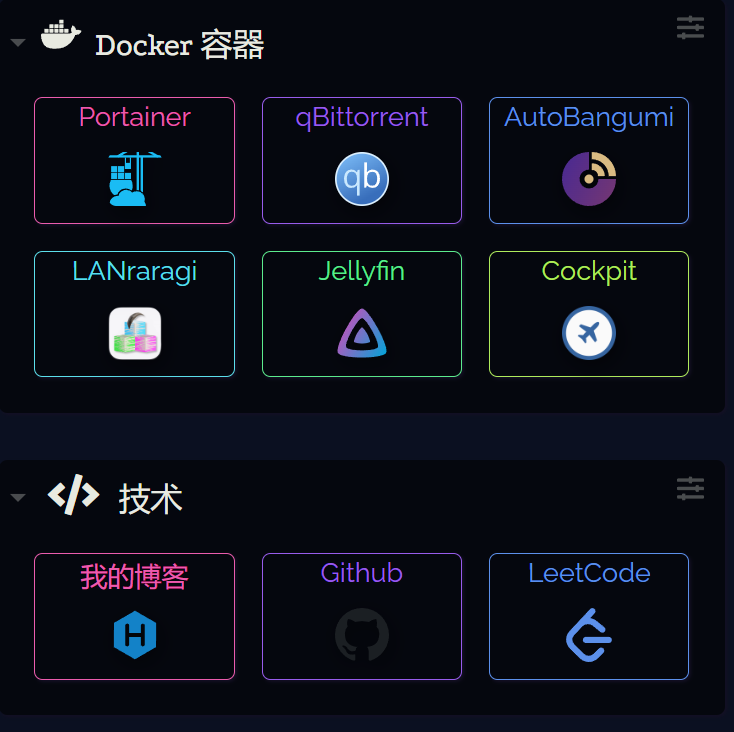
Dashy Installation and Config
Preface
Dashy is an open-source customizable dashboard software that requires self-deployment. My use case is to place links of frequently visited websites. This post mainly documents some problems encountered during installation and usage.
Installation
Docker compose:
1 | version: "3" |
config.ymlis the core configuration file. I prefer directly modifying it rather than using the UI to make changes and then save them to disk.
Setting Icons
There are many types of icons. I often use "Local Icons", "Font Awesome", and "Simple Icons".
Local Icons
Local icons are simply local images. The file extensions can be png and svg, but not ico.
Local icons must be placed under /app/public/item-icons/. Dashy only recognizes relative paths within this directory. In Docker compose, I map the local directory /opt/docker/dashy/dashboard-icons to that directory. This local directory is a clone of the dashboard-icons project.
The icons in the dashboard-icons project are some commonly used software icons, but there are no icons for Chinese software. Of course, we can also download icons and put them in this directory.
Since the icons in this directory are all colored images, while the latter two types of icons are black and white, I prefer this method.
Some examples:
1 | # Icons from the dashboard-icons project |
Font Awesome
Naming convention: [category] [name]
Examples: fas fa-rocket, fab fa-monero
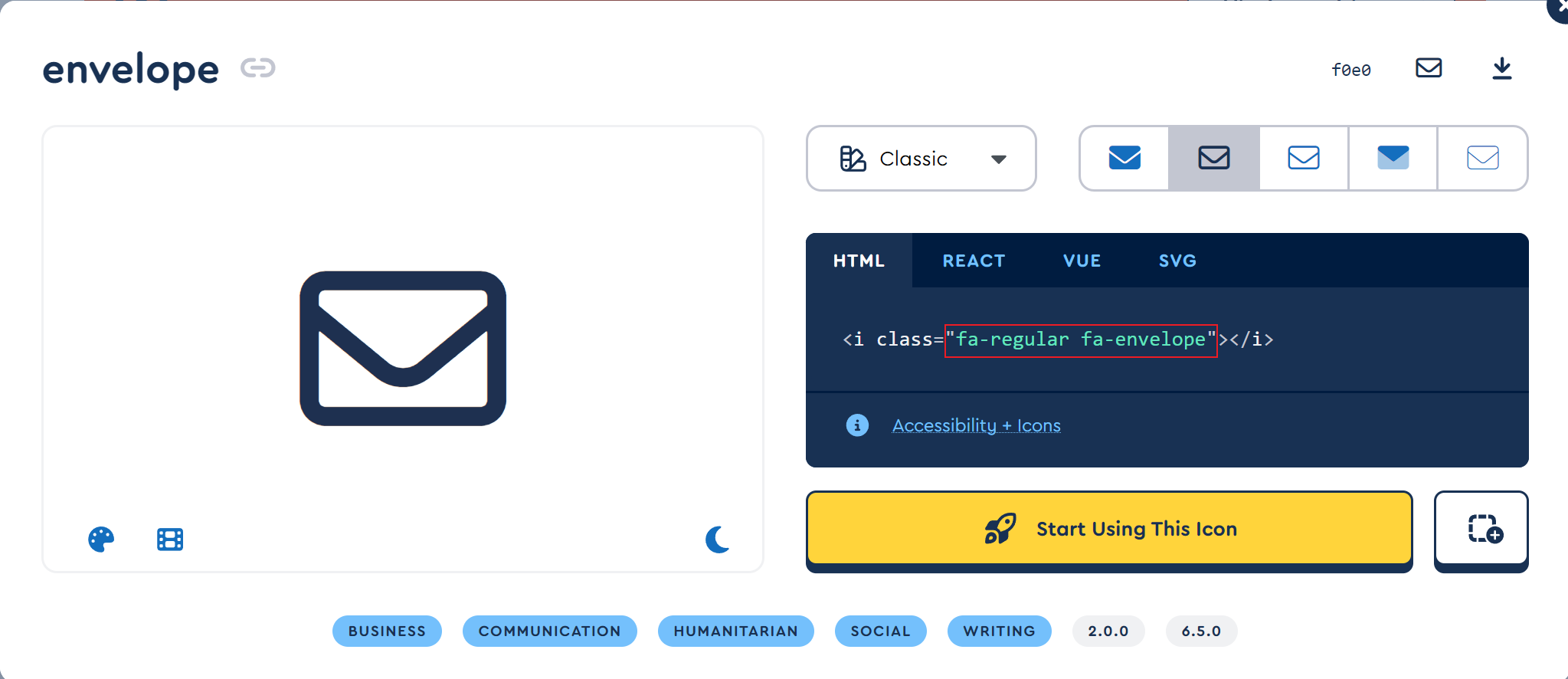
Taking the envelope as an example:
In HTML code, the name is fa-envelope, but the category needs to be abbreviated by ourselves as far.
In VUE code, the category is correct, but the name is not.
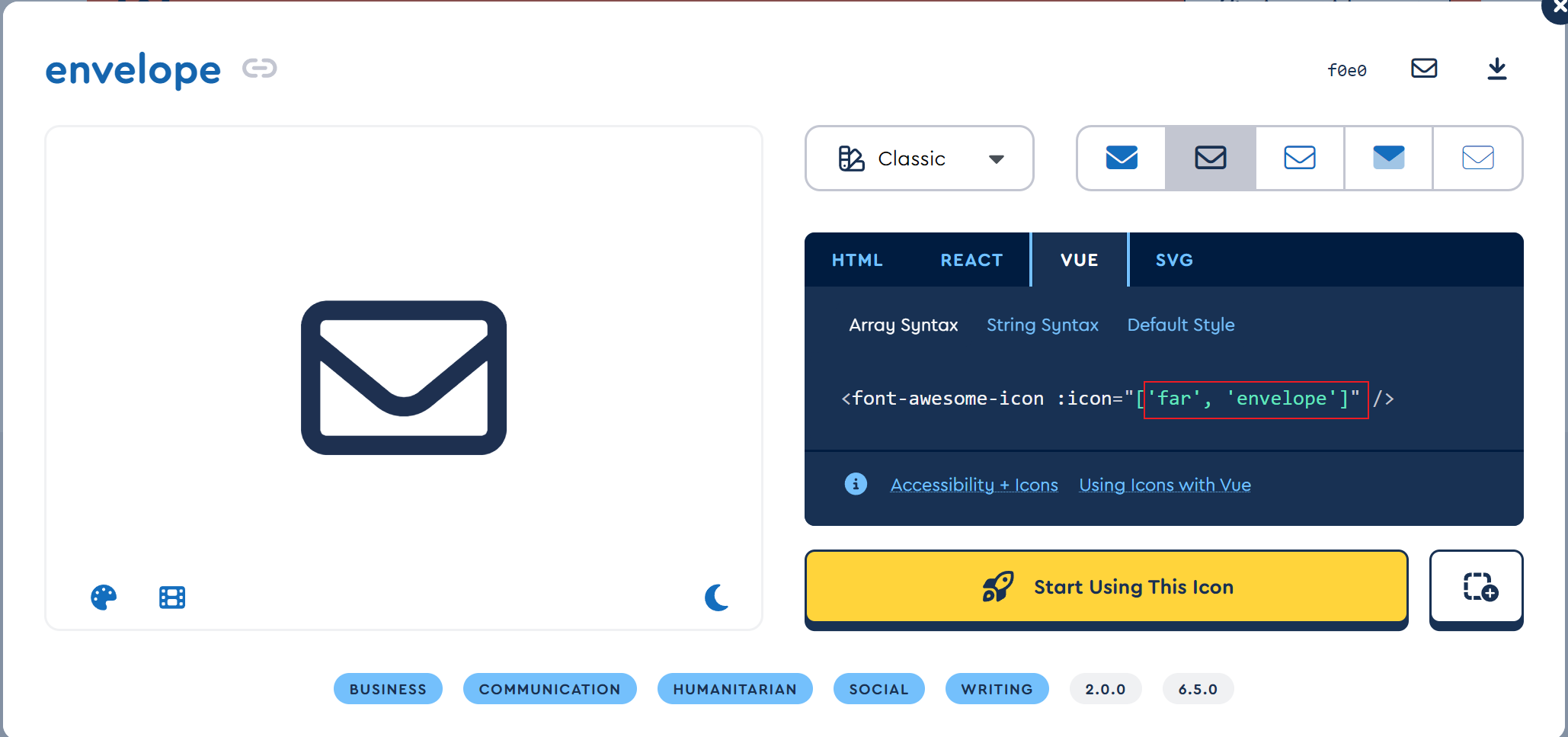
It's not clear where to directly copy the value of icon.
If you want to use pro icons, you need to configure the license key in appConfig.fontAwesomeKey, usually a 10-character string.
Simple Icons
The icons on this website are also commonly used software, however, including Chinese software.
Naming convention: si-[name]
Examples: si-googlechrome、si-bilibili
The name here can be directly copied from the official website (click on the text and it will be automatically copied):
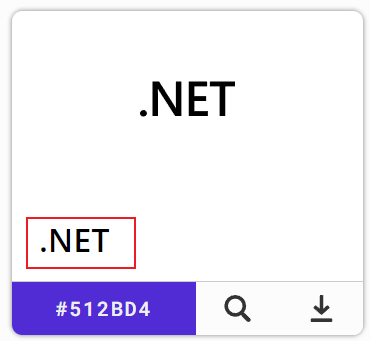
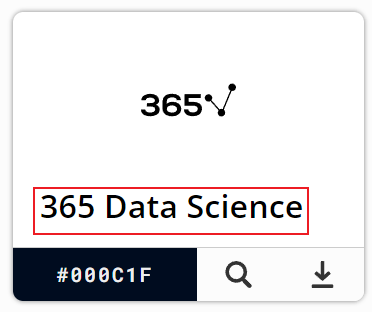
Clicking on '.NET' will copy dotnet, while clicking on '365 Data Science' will copy 365datascience. It can be seen that manual typing these words should be avoided as it is prone to errors.
Example Display