Isolating "Rogue Softwares" with Sandboxie-Plus
Introduction
In the context of the Chinese internet, "rogue softwares" refer to a category of untrustworthy applications. Unlike viruses, their "rogue" nature manifests in two ways: (1) Malicious writes: they install software without permission, modify system settings, and in severe cases, can cause system crashes; (2) Malicious reads: they scan user files and upload them, violating user privacy. In other words, these programs do whatever they want with the file system, and average users have little recourse.
I typically run untrusted but necessary softwares in a virtual machine to minimize impact on my main system. The problem is, while my desktop can run multiple VMs simultaneously, my laptop struggles even with one. Clearly, I needed a more lightweight isolation mechanism than a full VM.
Sandboxie-Plus uses a sandboxing mechanism for lightweight program isolation, which fits my needs. After using it for a while, I decided to write this post. This post first compares different isolation mechanisms, then focuses on how to use the feature-limited free version of Sandboxie-Plus to implement some advanced features of the paid version, achieving the goal of isolating "rogue software".
Compare Different Isolation Mechanisms
Before explaining how to use Sandboxie-Plus, it's useful to compare the isolation levels and performance overhead of virtual machines, containers, and Sandboxie-Plus.
| Mechanism | Isolation Level | Performance Overhead | Platform |
|---|---|---|---|
| Virtual Machine | Highest | High | All Platforms |
| Container | High | Low | Linux |
| Sandboxie | Relatively High | Low | Windows |
| Nothing | None | None | All Platforms |
On my desktop, my workflow for using an untrusted software is as follows: First, upload the installer to VirusTotal. Then, in a test virtual machine, scan the installer with antivirus software, then install and run it, monitoring for any virus reports. Finally, install and use the software in another VM dedicated to untrusted applications.
On my laptop, limited by RAM and storage capacity, using VMs is impractical. My goal was a "container-like mechanism on Windows", but such a thing doesn't really exist. The main reason is that various mechanisms within the Linux kernel are well-developed, allowing containers to achieve high isolation level with low performance overhead; Windows lacks these mechanisms. Note that Windows Sandbox is not a suitable alternative; it's akin to a disposable virtual machine. While its isolation level is high, it's not designed for daily use and doesn't support running multiple instances.
Sandboxie-Plus's sandbox isolation mechanism is essentially user-level isolation, primarily targeting the file system. Although it has low performance overhead, its security is far inferior to containers. However, since this article focuses on isolating "rogue software", Sandboxie-Plus is actually sufficient: For write operations, Sandboxie-Plus by default redirects modifications made by programs in the sandbox to the file system and registry to a user-specified directory, thus preventing malicious writes. To prevent malicious reads, we simply need to configure the sandbox to block the program's access to certain directories.
Use Sandboxie-Plus
First, create a sandbox:
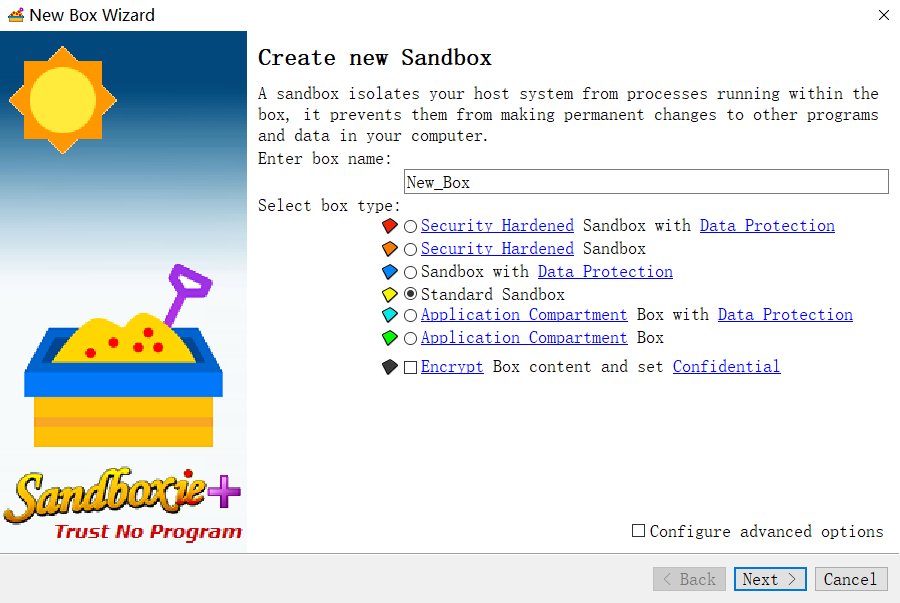
In the free version, we can only create a 'Standard Sandbox'; others with special functions require payment.
The one I want most is the first type shown in the image: 'Security Hardened Sandbox with Data Protection', which offers the highest level of isolation. We can check the documentation to see what settings the Security Hardened and Data Protection features actually include. Here, I'll only list the aspects that can be configured in a standard sandbox.
Drop Admin Rights
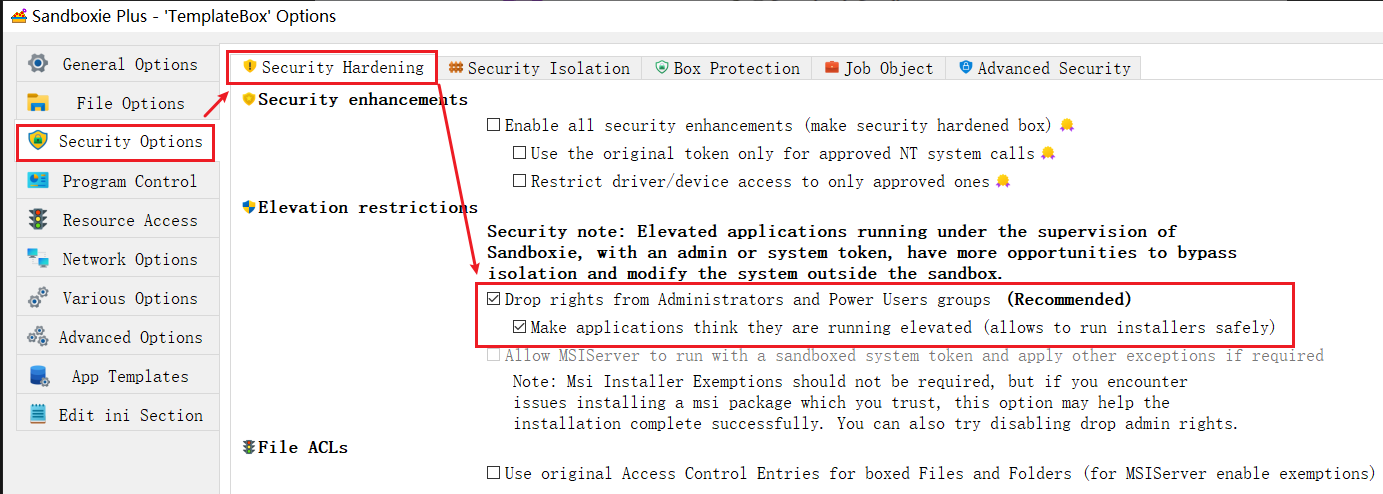
Or set via the configuration file:
1 | DropAdminRights=y |
Hide (and block access to) user space
A standard sandbox's default permission for the file system is read and copy-on-write. In other words, it can prevent malicious writes. What we need now is to prevent malicious reads, which means revoking read permissions for certain directories.
Which directories are these? Mainly the Users directory on the system drive (C:\Users\*) and all directories on non-system drives.
How to revoke read permission? One option is to block access entirely, but this would make C:\Users\<username>\AppData\* inaccessible, causing most programs to fail to run. Another option is the write-only permission. This permission is interesting: its logic is that a program can see its own write operations. For a write-only path like D:\pictures, the program initially cannot see anything there. But if the program performs a write operation to this path, it can then see the files within, but only the files it wrote itself. Therefore, we just need to configure the write-only permission for the aforementioned directories.
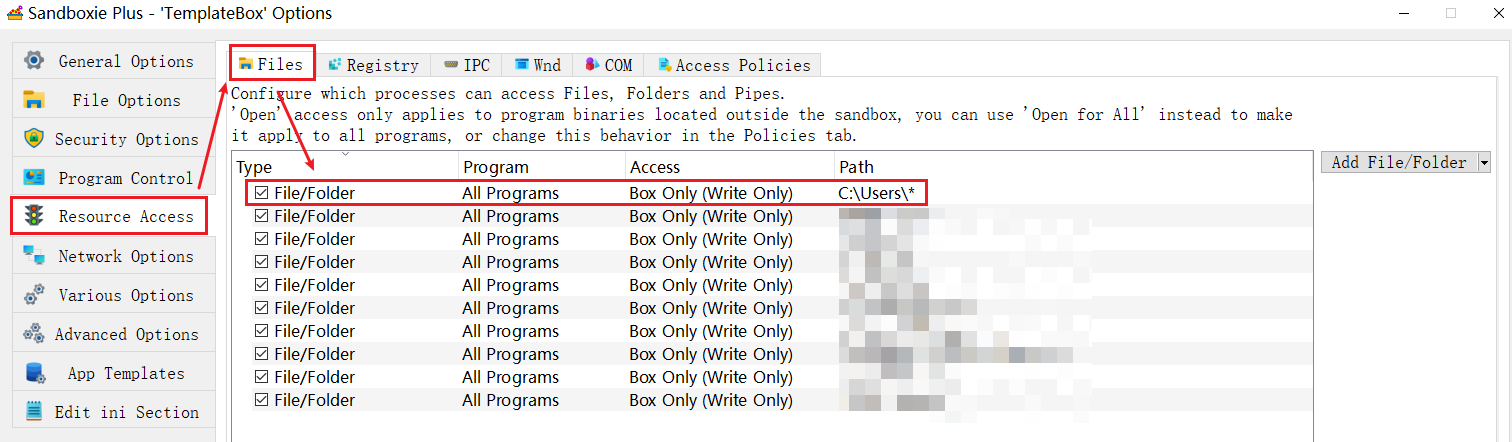
Or set via the configuration file:
1 | WriteFilePath=C:\Users\* |
Rule Specificity
You might have noticed in the image above that I configured write-only permissions for many directories, which isn't because I actually have that many non-system drives.
In the previous section, we set the Users directory on the system drive and all non-system drives to write-only. So, if we want to pass files from the host to a program inside the sandbox, where should we place this file so the sandboxed program can see it? Only in non-Users directories on the system drive. However, I don't really like placing files in these directories; I prefer to put shared files in a specific path on a non-system drive. Maybe we could configure it like this?
1 | WriteFilePath=C:\Users\* |
- Normal permission is the default access rule, allowing read and copy-on-write.
However, this won't work. In the free version of Sandboxie-Plus, all access rules have the same priority. If any access rule denies access, other access rules for the same path become ineffective. If a path is set to read-only, its subdirectories cannot be written to. Similarly, if a path is set to write-only, its subdirectories are initially unreadable. Furthermore, paths with wildcards do not have lower priority than specific paths. Consequently, the sandboxed program won't see the shared file.
In the paid version, the priority of access rules is based on path length. The longest matching path takes precedence, meaning access rules for subdirectories can override those of parent directories. But the free version lacks this feature, so we need to do some extra work. Specifically, we set write-only permissions for all direct subdirectories of the non-system drives, rather than setting the entire non-system drive to write-only.
1 | WriteFilePath=C:\Users\* |
After doing this, placing shared files directly under D:\ allows the sandboxed program to see them. The obvious drawback of this approach is that whenever we create a new directory on the D drive, we need to modify the configuration of all sandboxes to add a write-only permission for that path, preventing malicious reads.